
How to Set Up One-Touch Launching of TV Shows on Your Apple TV Via Your iPhone
Issue #68

The Problem:
Your mom loves watching her favorite shows on her Apple TV, but using the Apple TV Remote to navigate menus can get complicated, and she has problems speaking to Siri
If there were only a way that she could tap a pre-programmed button on her iPhone to bring up where she left off in a show
The Solution:
While Apple Shortcuts don't offer many direct Actions over Apple TV other than Sleep/Wake, Play/Pause, and Skip Content, Apple Shortcuts do offer an "Open URLs" Action that can be used to launch a specific show within Apple TV
Some of the benefits of Apple Shortcuts are that they can be launched from a large widget on the iPhone screen or given an easy-to-remember name for launching by Siri
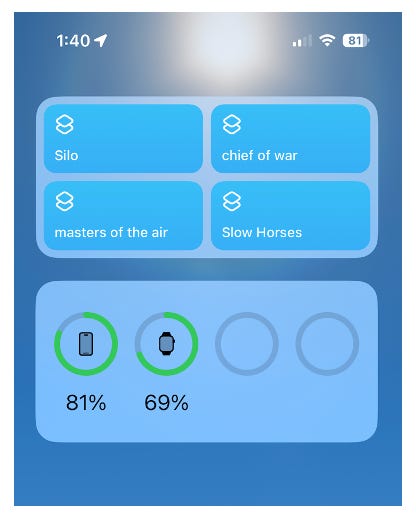
This works by using the URL (web address of the show on AppleTV.com) on the iPhone and then handing it over to the Apple TV
Items required:
· Apple TV
· iPhone or iPad
Here is a YouTube video of it in action
The Set Up:
Step 1: Getting the URL for the show
· Go to the Apple TV website
· Search for the TV show you want to watch
· Click on the show to go to its main page.
· Look at the URL in your browser's address bar. The URL will look something like this:
§ https://tv.apple.com/us/show/silo/umc.cmc.3yksgc857px0k0rqe5zd4jice
Step 2: Create an Apple Shortcut- If you are not familiar with Apple Shortcuts, see article #28 "How to Create Simple Apple Shortcuts for Your Elderly Parent's iPhone or iPad"
Here is a sample Shortcut that you can modify to use your Apple TV
Click here to download this sample
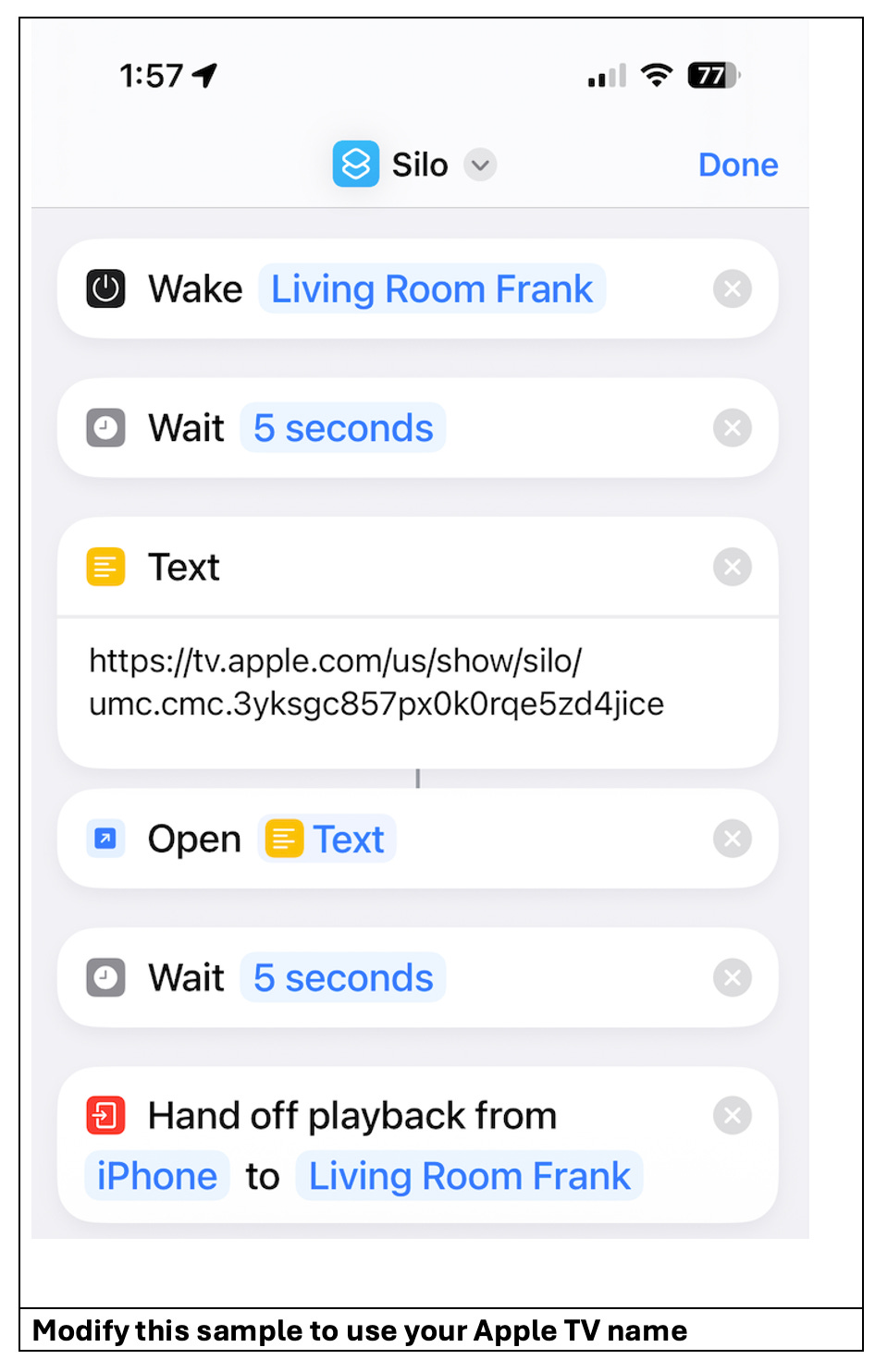
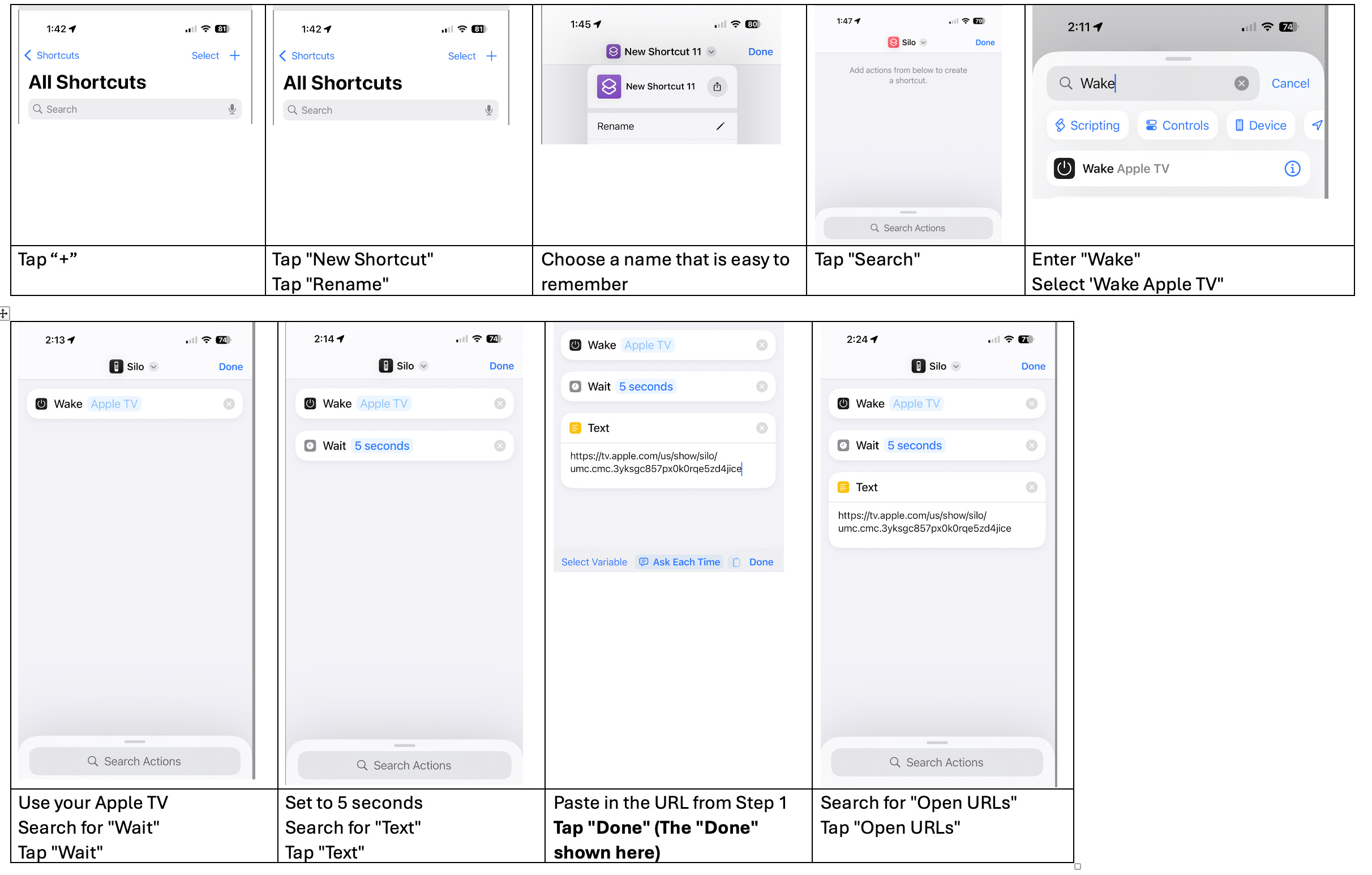
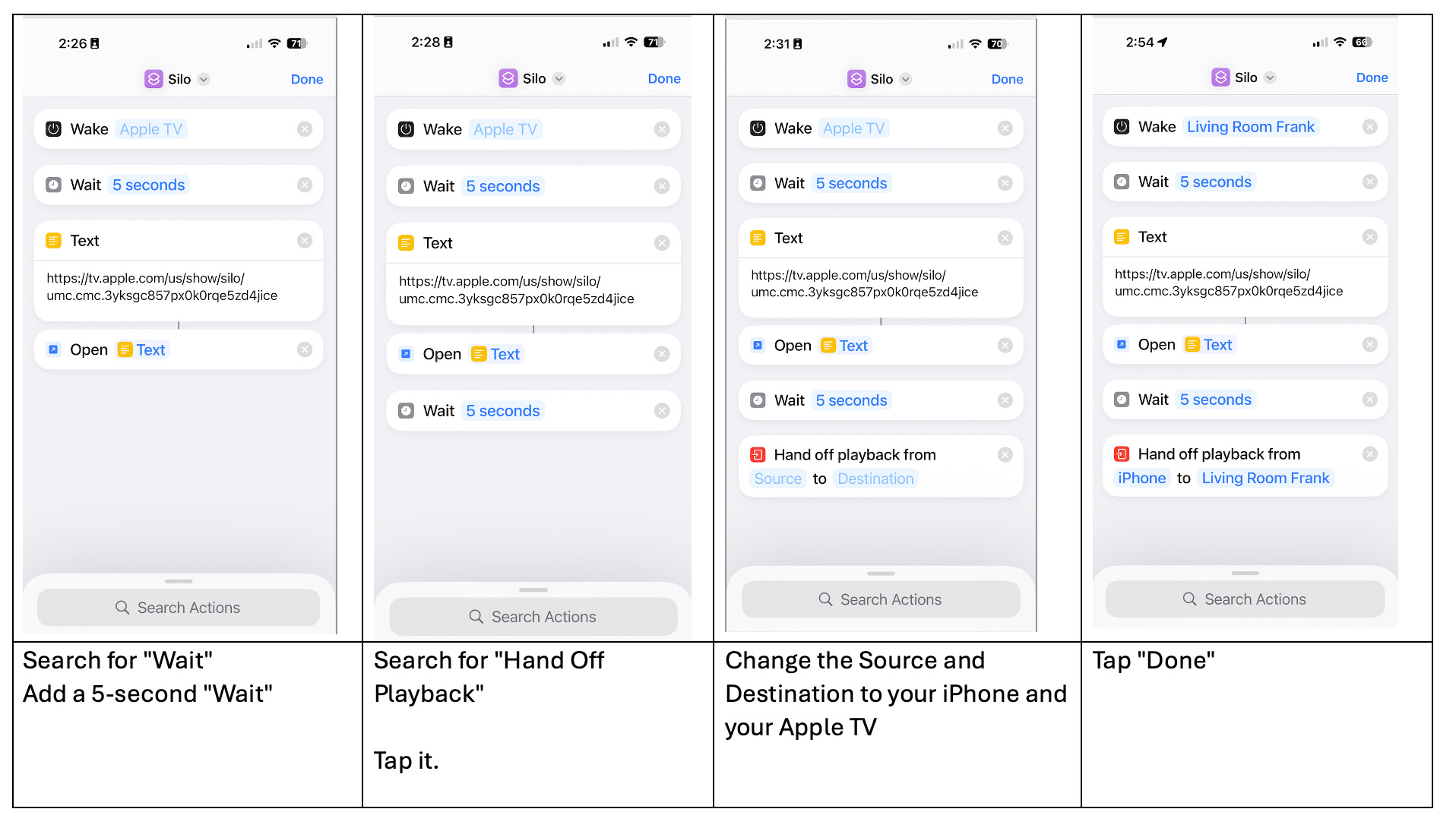
Optional- If you prefer to create the Shortcut yourself, here are the steps using the Apple Shortcuts app.
This is much harder than just modifying the sample
Testing:
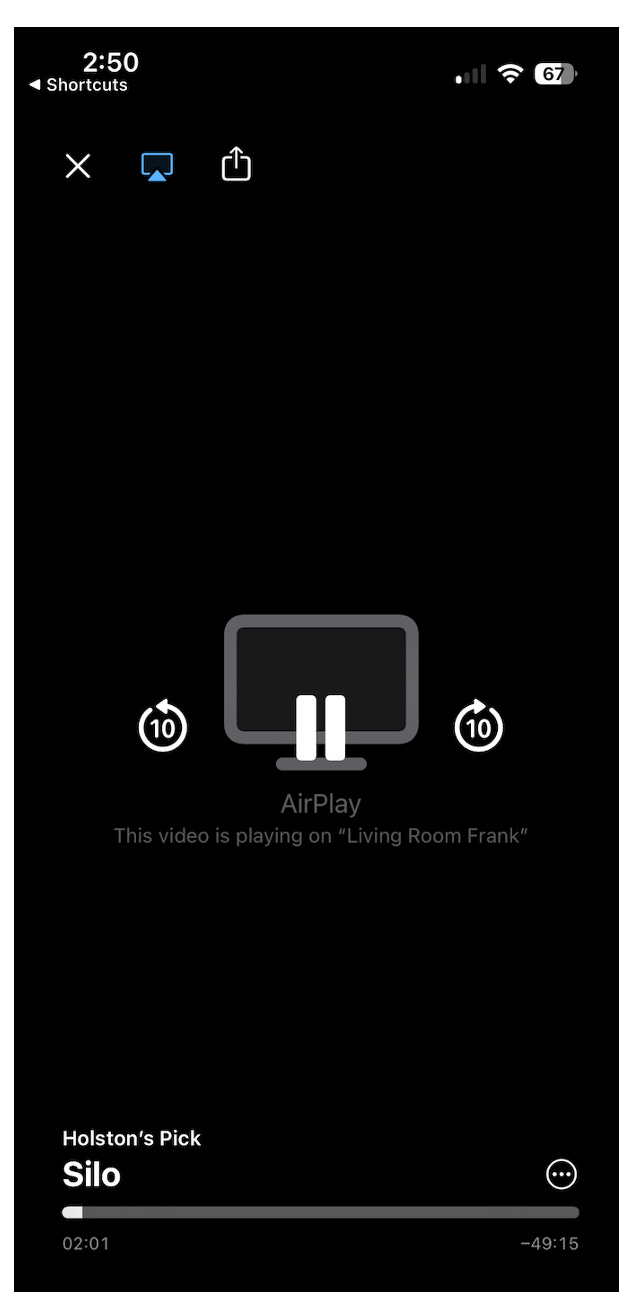
Tap your Shortcut name to ensure that it turns on the Apple TV and brings up your video on your iPhone.
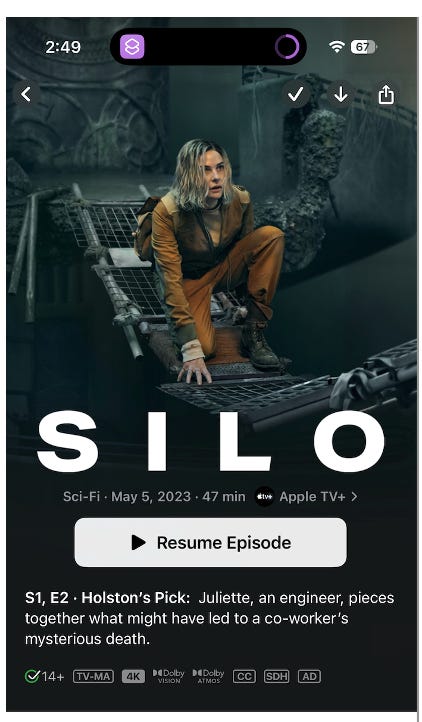
Tap "Resume" to start playing on the Apple TV
Step 3: Add other videos by duplicating a Shortcut
You can easily create other Shortcuts for different videos, once you get their URLs from Step 1
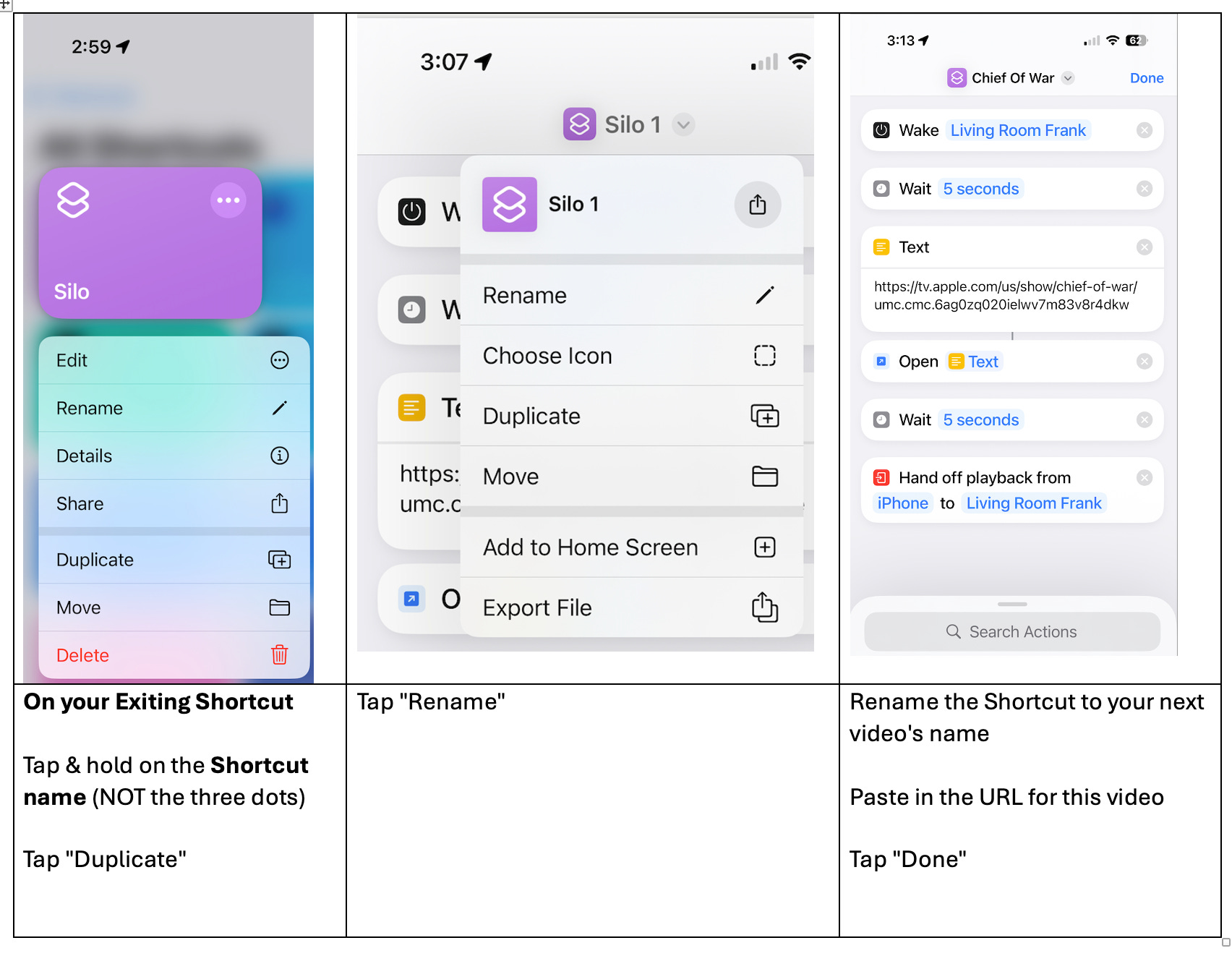
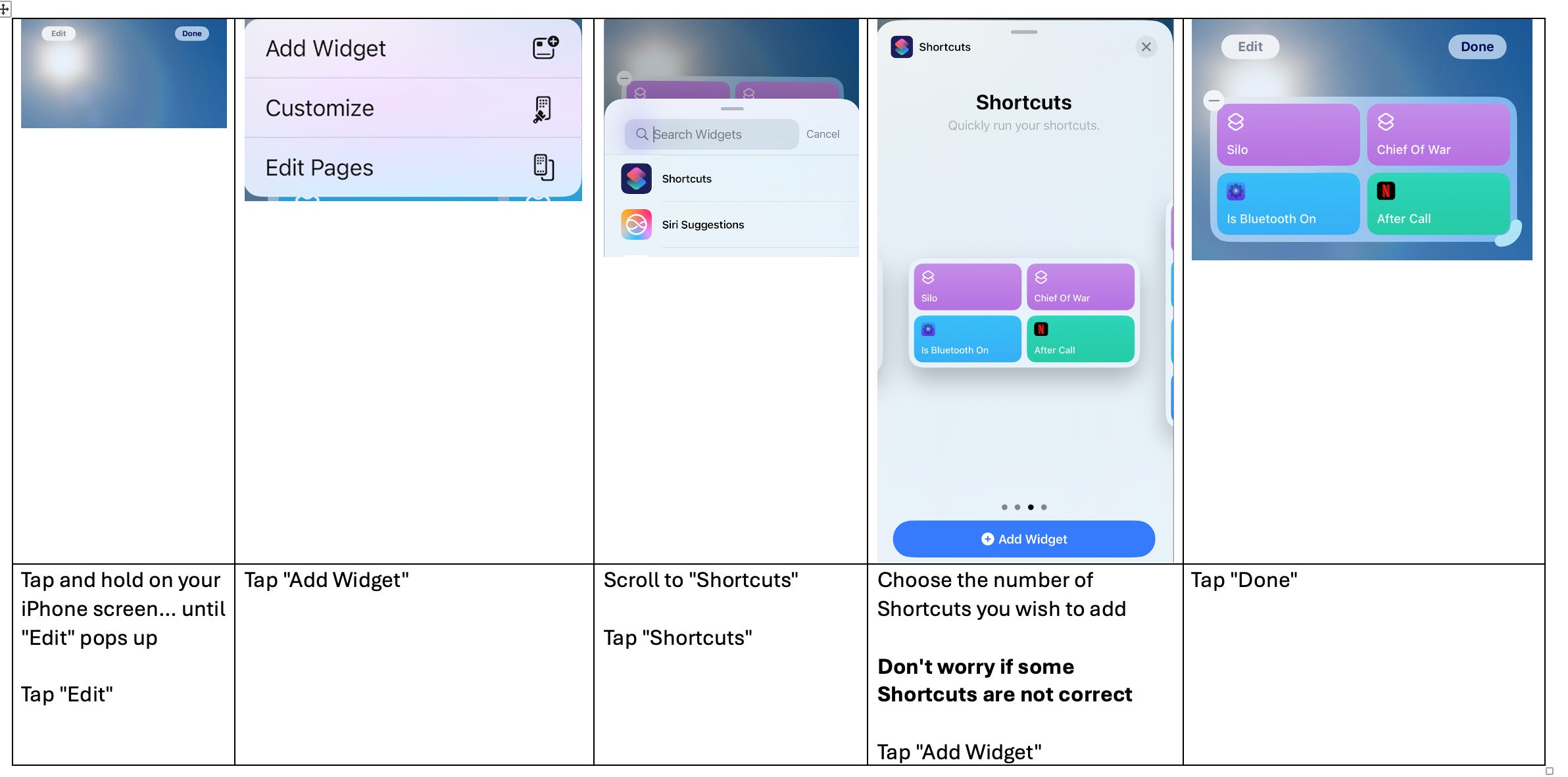
Step 4: Create the iPhone/iPad Widget
How to create a Widget
Note: If some of the Shortcuts are not correct, you can edit them in these next steps
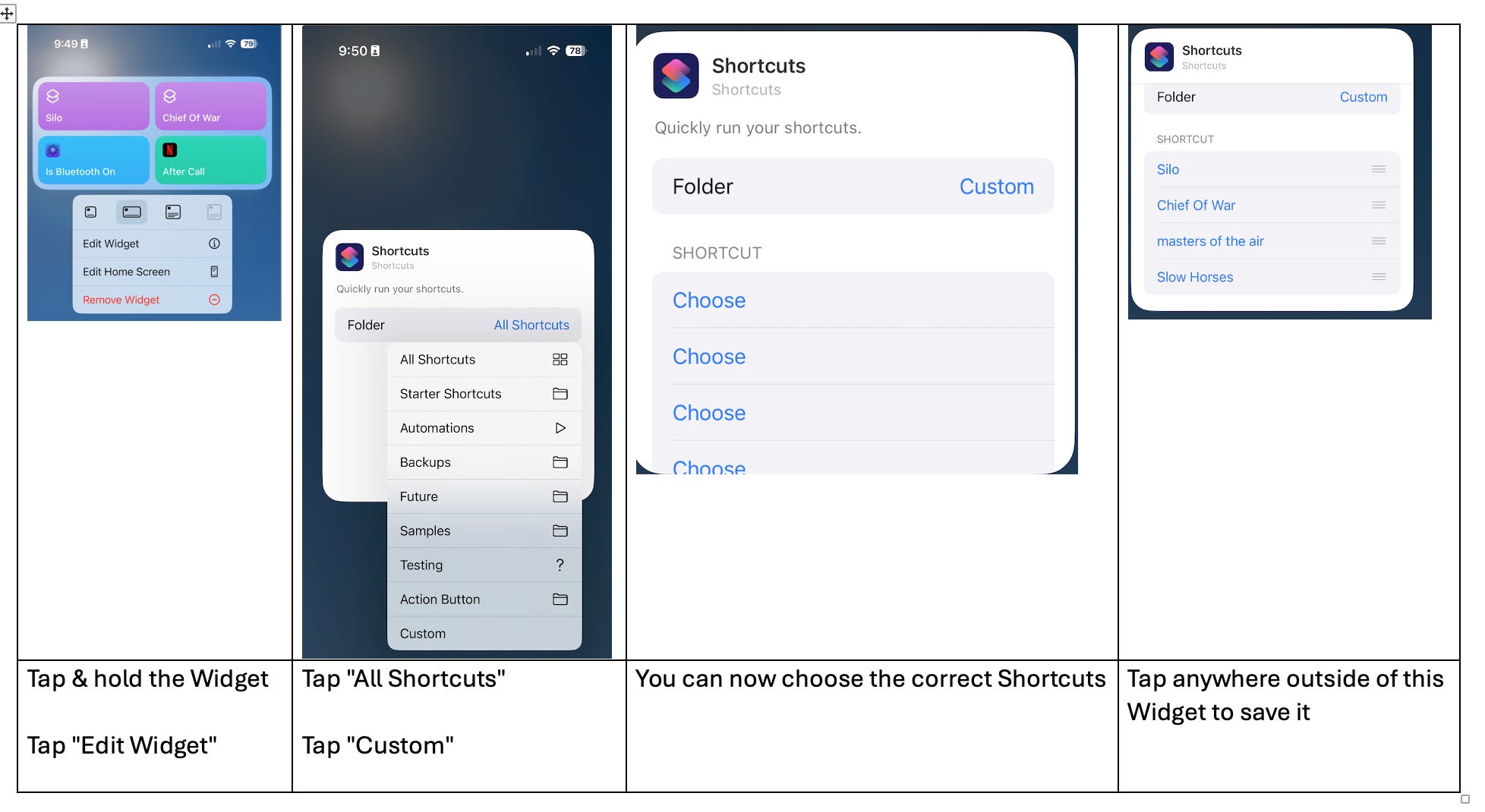
Testing: Tap a Widget to be sure it launches the Shortcut
Bonus:
You can Pause-Resume the video using the iPhone
When similar piece using android phone to control TV?