
Using Alexa To Control YouTube on Your TV
Issue # 89

The Problem:
You enjoy following along with exercise YouTube videos on your TV, but you wish there were an easy way to pause/resume and skip ahead on the videos without reaching for the remote control
The Solution:
If you are using an Amazon Fire TV device, such as a Fire TV Stick, Fire TV Cube, or TV with Amazon Alexa built in, you already know how to use the Fire TV remote to perform those functions. What you may not have noticed is that your Fire TV Cube or Amazon Omni Fire TV has a feature called “Hands-free Alexa” where you can speak the following commands to control a video that is playing
· “Alexa, pause/resume”
· “Alexa, play/stop”
· “Alexa, skip [X] seconds/minutes”
In fact, you can even ask Alexa to play a specific video
“Alexa, play Chair Yoga for restricted mobility on YouTube on FireTV”
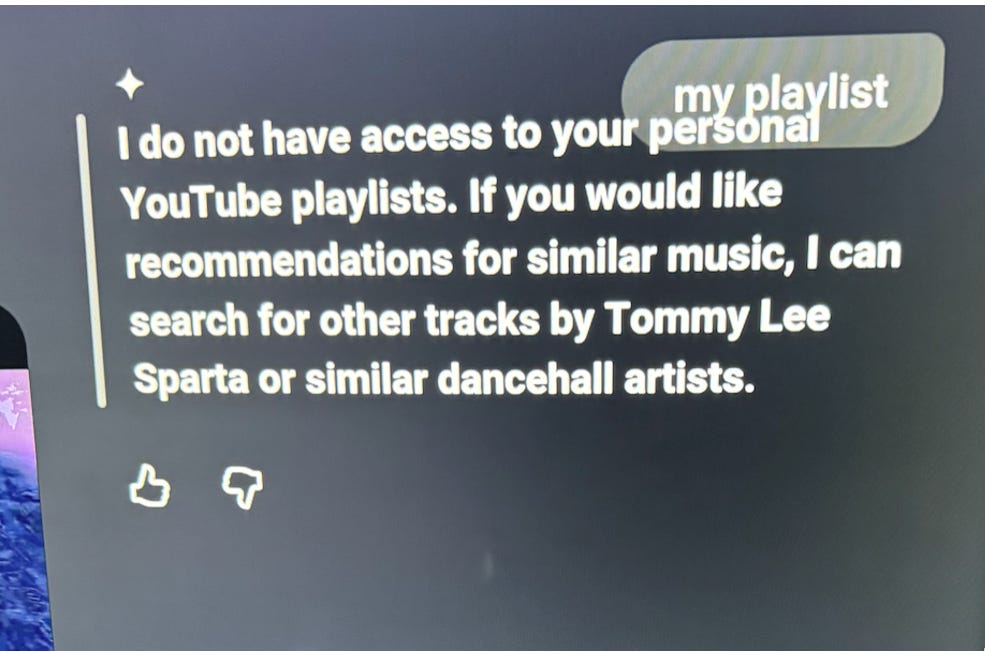
Note: Although you can use Alexa to play a specific YouTube video, you can’t play a YouTube Playlist by speaking its name
Wait, I only have a Fire TV Stick, or my Fire TV doesn’t have “Hands-free Alexa”
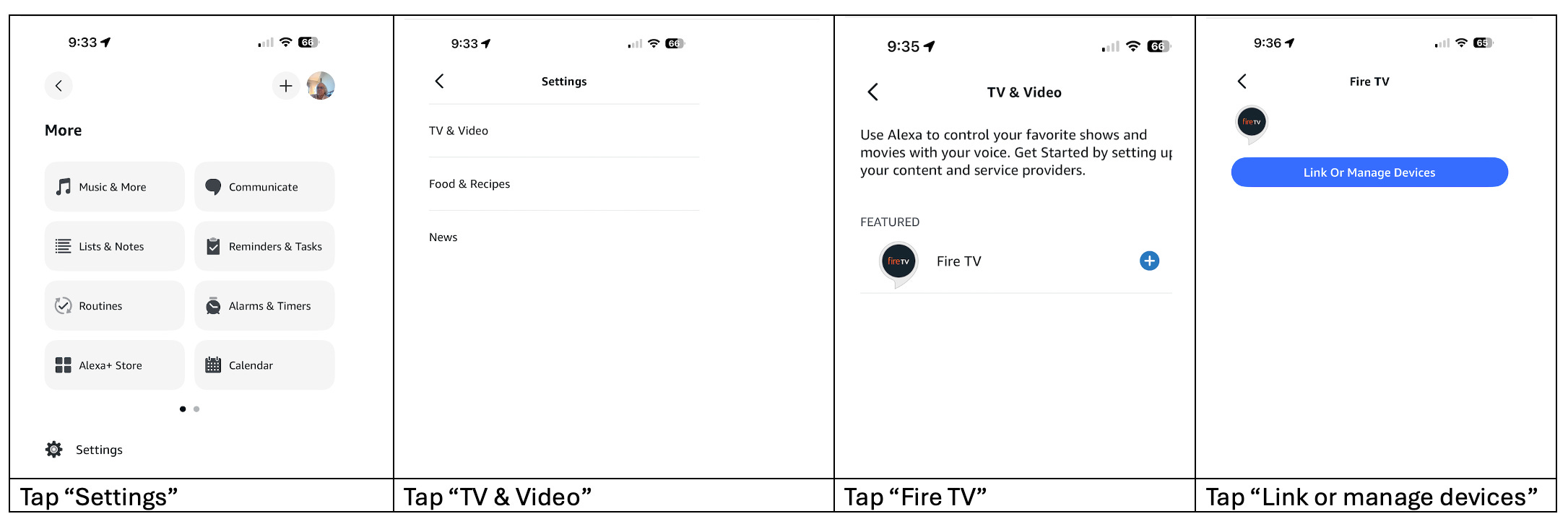
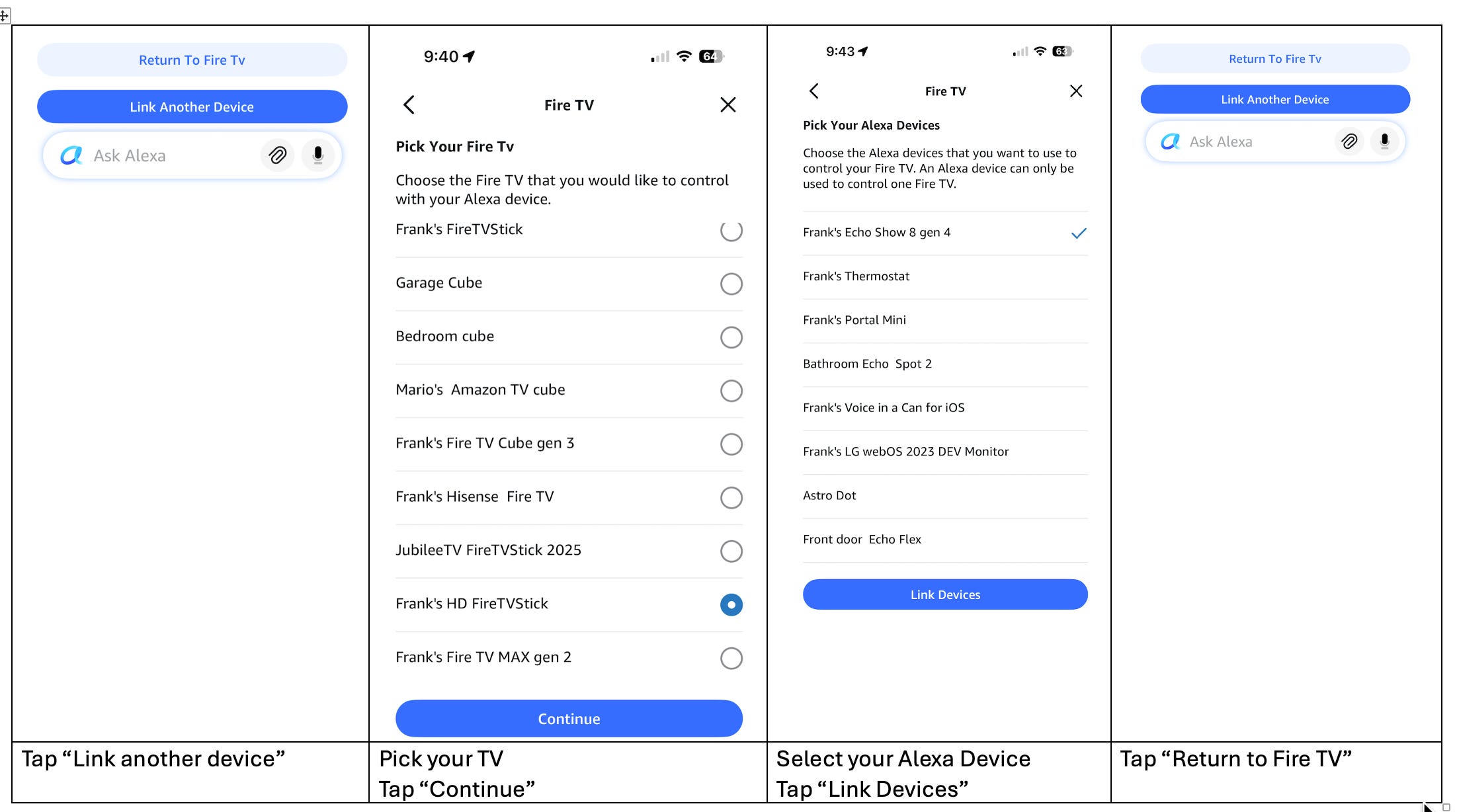
If you have an Amazon Echo Dot or Amazon Echo Show, you can “link” it to your Fire TV Stick or your Fire TV that doesn’t have “Hands-free Alexa”. This will allow you to speak Fire TV commands through your Echo Dot or Echo Show.
On your smartphone in the Alexa app
Testing:
Use your Fire TV remote to start playing a YouTube video and test the commands listed above.
Notes:
If you are using an Echo Show, it might interpret the commands as for itself instead of the Fire TV. You will need to include “on Fire TV” in the voice command when asking it to play a YouTube video. To avoid this problem, I suggest using an Echo Dot
If you pause for a long time, your Fire TV screen saver may start. You will have to use the remote control to get back to the YouTube video