How to Easily Handle the Request for Confirmation on Your iPhone
Atricle #92

The Problem:
Your mom gets frustrated with the “request for confirmation” process on some websites, where she has to copy a code sent via SMS or email. Switching back to the requesting app after she has copied the code she received can be frustrating, since she has moved to an iPhone with no “Home” button. The “swipe up” to expose running applications has proved very difficult.
The Solution:
Here are some methods listed in the order of ease of use.
Method 1:

Use the Apple “Security Code AutoFill” feature in iOS 12 or later. This removes the need to switch to Messages to retrieve the code, copy it, and then switch back to the app that requested verification to enter the code.
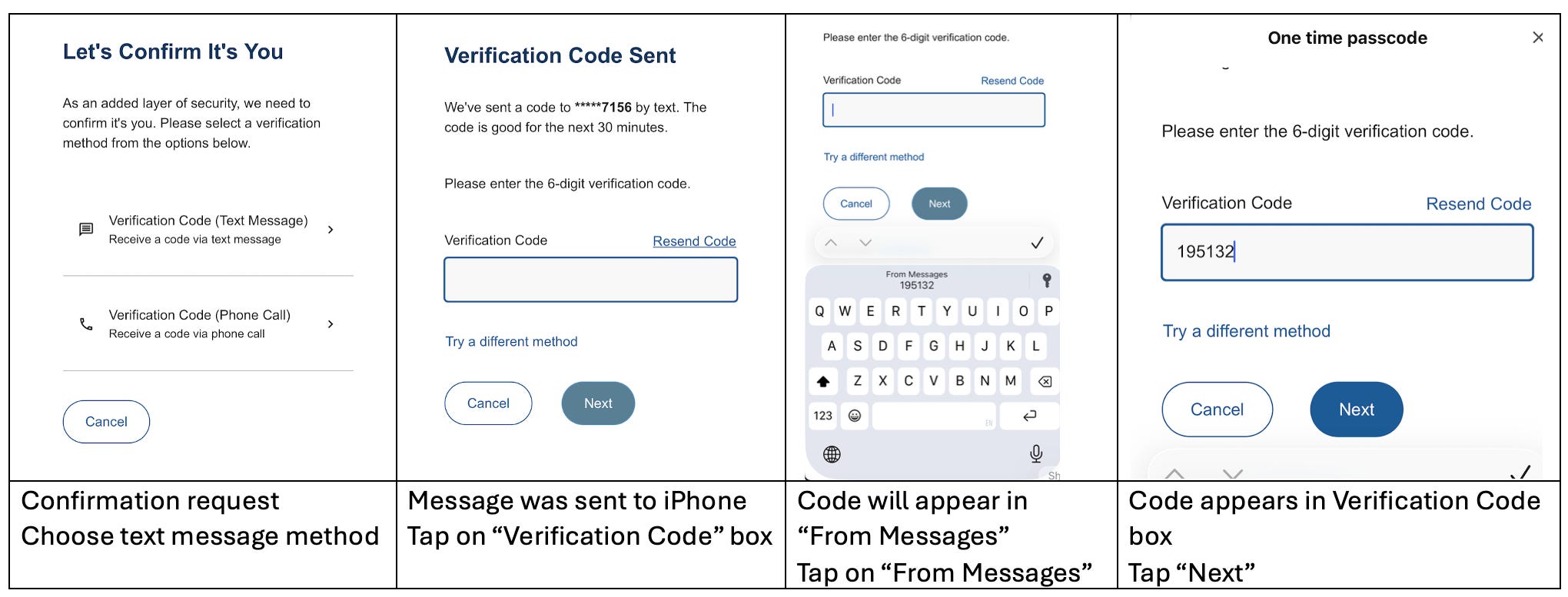
Method 2:
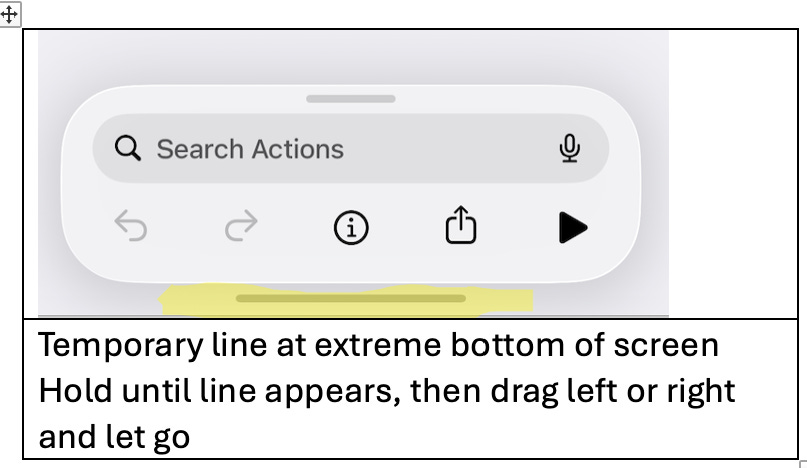
There is a temporary “short black bar” at the bottom of the screen when multiple apps are open. It can be used as a “touch and hold slider” to swipe between the running apps. This works even when the bar disappears… just “tap & hold” the bottom center of the screen until the bar appears, then “hold & slide” left or right back to the requesting app.
Method 3:
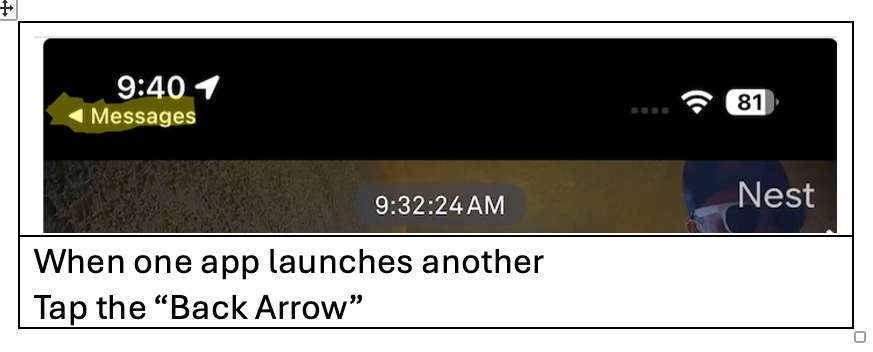
When one app invokes another, note a “back arrow” under the clock that can be used to get back to the requesting app
Method 4:
In this method, the one she is having trouble with, mom taps and holds her finger at the bottom of the screen, slides about ½ of the way up, and releases. This displays all the running apps, and she can choose the app that requested verification.
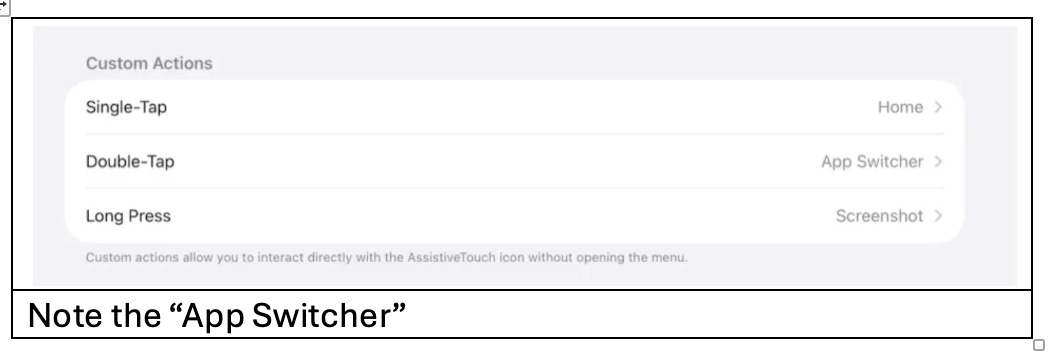
If your mom prefers this “all running apps” approach, you can set up a “floating home button” for her as detailed in article #86, “How to Add a Home Button to Your iPhone or iPad if it Doesn’t Have One”